How to Compress an Image to 20KB for Online Forms
Key Takeaways
- A 20KB limit is very small compared with the size of most modern phone photos.
- Reducing oversized dimensions can be more effective than simply lowering JPEG quality.
- Crop unnecessary background when it makes sense for the image.
- Use JPEG for most photographic images when a very small file is required.
- Check the required pixel dimensions as well as the 20KB file-size limit.
How to Compress an Image to 20KB for Online Forms
Getting an image below 20KB is a much tighter requirement than it sounds.
A photo taken with a modern phone can easily be several megabytes, while an online form may give you only 20KB to work with.
That means you can't usually just save the original photo at a slightly lower quality and expect it to fit.
You need to reduce the amount of information in the image carefully, while keeping the result usable for whatever you're uploading it for.
This guide explains why 20KB is such a small target, what you can do to reach it, and how to avoid making the image far worse than necessary.
Why Is 20KB Such a Small Image Size?
A typical smartphone photo contains millions of pixels.
For example, an image that is 4000×3000 pixels contains 12 million pixels.
A 20KB file simply doesn't have enough space to preserve all of that original information in the same way.
That's why getting an image down to 20KB often requires more than just changing the JPEG quality.
The final file size depends on several things:
- Image dimensions: More pixels generally mean more data.
- JPEG compression: More aggressive compression produces smaller files, but can also remove more visual detail.
- Image content: A simple portrait against a plain background can compress more easily than a complicated scene.
- Metadata: Some image files contain additional information that isn't necessary for the upload.
When the limit is only 20KB, every part of the image matters.
What Is the Best Way to Reduce an Image to 20KB?
The key is to avoid treating JPEG quality as the only setting that matters.
A better approach is to look at the image as a whole.
Start With the Dimensions
If your original photo is extremely large, reducing its dimensions can have a much bigger effect than simply lowering the quality.
Imagine trying to compress a 4000×3000 photograph directly to 20KB.
You would have to throw away a huge amount of image information.
If the image is intended to appear as a small photo on an online form, keeping all those original pixels may not make sense anyway.
Reducing the dimensions first gives the compression process less data to work with.
Crop Unnecessary Areas
If a photo contains a large amount of empty background, cropping it can also help.
You're removing pixels that don't contribute much to the final image.
This can be particularly useful for portraits, ID photos and application images where the subject occupies only part of the original photograph.
Use our Crop Image tool first when you need to remove unnecessary areas.
Use JPEG for Photographs
For ordinary photographs, JPEG is usually much more space-efficient than PNG.
PNG is excellent when you need lossless image data, transparency or crisp graphics, but it can become surprisingly large when used for detailed photographs.
If the requirement is a tiny file such as 20KB, JPG or JPEG is generally a more practical choice for photographs.
How to Compress an Image to 20KB
Step 1: Start With the Original Image
Whenever possible, begin with the original photograph.
If you repeatedly compress and save the same JPEG, you may introduce additional artifacts before you even begin trying to reach 20KB.
Starting with the original gives you the best version to work from.
Step 2: Crop the Image if Necessary
Look at the entire image before compressing it.
If there is unnecessary background, remove it first.
This can make a surprisingly large difference when the final file-size limit is extremely small.
You can use Crop Image to remove unwanted areas while keeping the subject properly framed.
Step 3: Resize an Oversized Image
A very large image may need to be resized before it can realistically reach 20KB.
Don't stretch the image or change the width and height independently.
Keep the original aspect ratio so the subject doesn't become distorted.
Step 4: Compress the Image
Once the dimensions are appropriate, use our Compress to 20KB tool.
The goal is to get the final image under the required file-size limit without applying more compression than necessary.
Step 5: Check the Final Image
Don't look only at the number.
Open the final image and make sure the parts that matter are still recognizable.
For a portrait, check the face.
For a document image, check text and important lines.
For a signature, make sure the strokes are still clear.
Why Does My 20KB Image Look Blurry?
This is one of the most common problems with very small file-size limits.
A 20KB file has a very limited amount of data available.
If you try to keep a huge image at its original dimensions and simply force the file below 20KB, the compression has to work much harder.
That can produce:
- Blurry edges
- Blocky areas
- Loss of fine detail
- Smudged textures
- Color artifacts
The solution isn't always to accept worse quality.
Sometimes the better solution is to reduce the dimensions first.
A smaller image with sensible dimensions can sometimes look better at 20KB than a much larger image that has been heavily compressed.
Does Lowering the Image Resolution Always Make It Better?
Not necessarily.
Reducing dimensions too far can make the image unusably small.
For example, if a website requires a minimum width or height, making the image tiny just to hit the 20KB limit could cause the upload to fail.
That's why you should always check the requirements of the website or form before deciding how small the image should be.
There are two separate questions:
How small does the file need to be?
and
How large does the image need to be in pixels?
You need to satisfy both.
Why Some Images Compress Better Than Others
Not every photograph behaves the same way.
A portrait with a plain background may compress relatively well because large areas of the image contain similar colors.
A photograph of a forest, crowded room or detailed building contains far more visual variation.
That variation takes more data to represent.
So two photographs with exactly the same pixel dimensions can end up with noticeably different file sizes.
This is why there is no single JPEG quality percentage that will always create a good 20KB image.
Can a Photo Still Look Good at 20KB?
It depends on what you mean by "good."
A 20KB image cannot preserve the same amount of detail as a multi-megabyte original.
But that doesn't automatically make it useless.
For a small online form, profile image or simple identification upload, the image may still be perfectly usable if the dimensions and compression are appropriate.
The important thing is to judge the image based on how it will actually be used.
A 20KB image shown as a tiny thumbnail has very different requirements from a photograph that someone intends to print.
20KB Image vs 50KB Image
A 50KB limit gives you more room to preserve detail.
With a 20KB limit, you have significantly less data available.
That means you may need to pay more attention to:
- Image dimensions
- Cropping
- File format
- Image complexity
- Compression level
If a website allows 50KB, don't force the image down to 20KB unnecessarily.
A smaller file is not automatically better.
Use the smallest size that actually meets the requirement.
Common Mistakes When Trying to Reach 20KB
Only Changing JPEG Quality
Dragging the quality slider down again and again isn't always the best solution.
If the source image is enormous, start by reducing the dimensions.
Keeping a Huge Amount of Empty Background
Unnecessary background still contains pixels.
Cropping the image can make it easier to reach the target size.
Ignoring the Required Dimensions
A file can be under 20KB and still fail because it doesn't meet the required pixel dimensions.
Saving the Image Repeatedly
Repeated JPEG compression can gradually introduce visible artifacts.
Work from the best original copy you have.
Assuming Every Image Can Look Identical at 20KB
Different images contain different amounts of information.
Some will retain detail better than others at the same file size.
What If the Image Still Won't Go Below 20KB?
If you are struggling to reach the limit, check the image dimensions first.
If the image is still very large, resize it proportionally.
If there is unnecessary background, crop it.
Then run the image through a target-size compressor such as Compress to 20KB.
If the website has additional requirements, such as a minimum width, height or specific format, make sure those requirements are satisfied before downloading the final image.
Final Thoughts
A 20KB image limit is strict, so there is usually a trade-off between file size, dimensions and detail.
The mistake is to assume that the only answer is to keep lowering JPEG quality.
A better approach is to start with the original image, crop unnecessary areas, reduce oversized dimensions when appropriate, and then compress the image toward the required file size.
For a quick solution, use Compress to 20KB and check the final image before uploading it.
And remember: the smallest possible file is not always the right file. The goal is to meet the 20KB requirement while still keeping the image suitable for the form or application.
Frequently asked questions
Is this conversion free to use?
Yes, our online tools are 100% free with no account required.
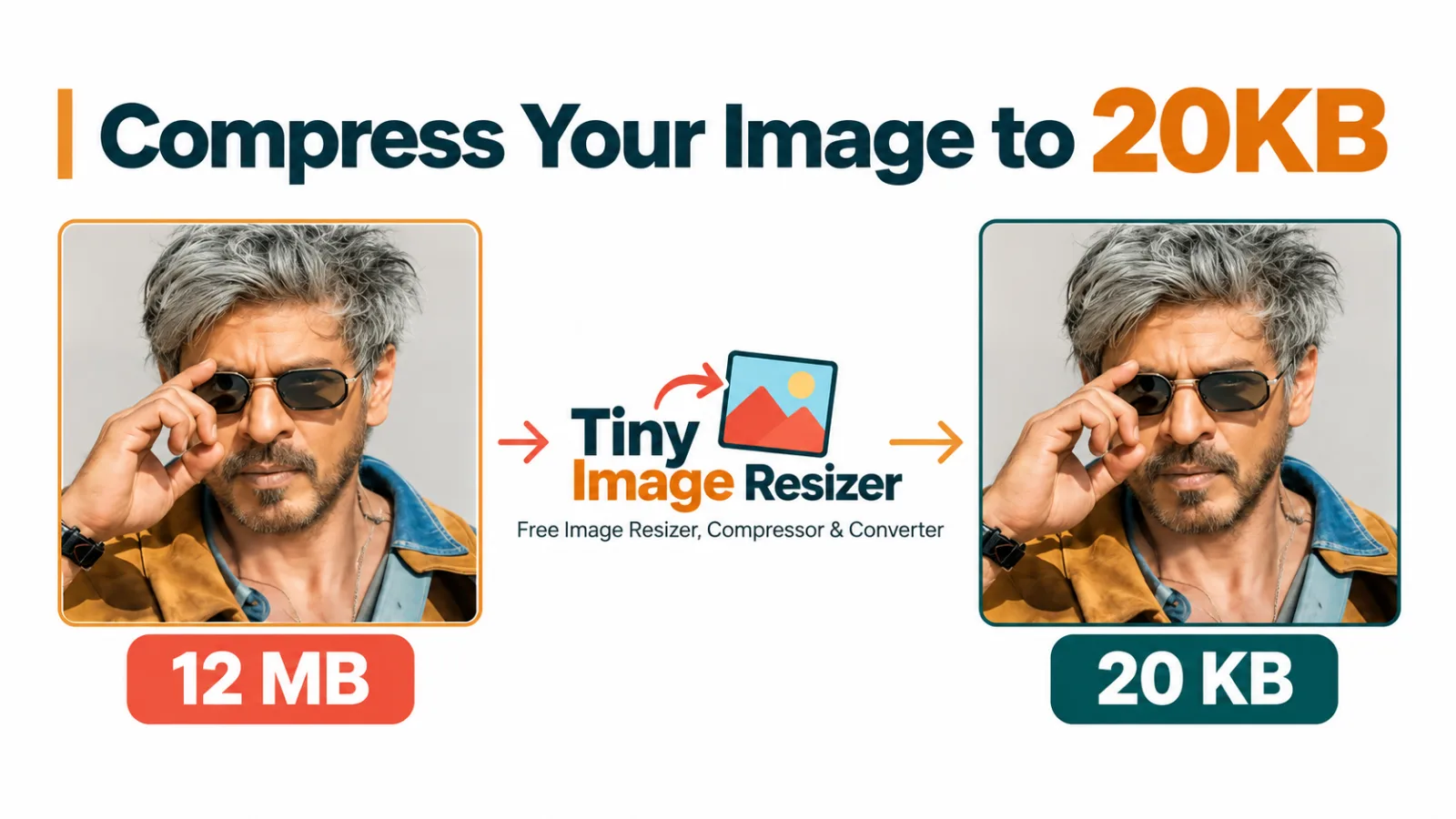
Compress Your Image to 20KB
Private & Client-Side Image Processing
Your images stay safely in your browser. Here is how our architecture protects you:
Image processing is performed locally in your browser memory for all supported tools, so your selected files never need to be uploaded to an external processing server.
No storage or file harvesting. Because operations occur client-side, we never copy, view, or retain your personal photographs or documents.
Instant speed and zero bandwidth costs. With local Canvas and WebAssembly execution, files are processed at full device speed without cloud upload lag.
More guides & articles
How to Compress an Image to 500KB Without Losing Quality

How to Reduce Photo Size to 50KB for Online Forms